
Sprint Overview
Our standard sprints run for on a one month cycle. New cycles begin on the last Tuesday of every month.
Sprints are a collection of development tickets arranged by the Product Manager and assigned to the Engineers by their Engineering Team Lead for completion within the sprint cycle. The goal of the sprint is to bring in specific project developments based upon development priority, the assigned Fix Versions, and project goals for the next software release. The Product Owner must balance the incoming sprint workload with the amount of available hours for each development team per cycle. The ultimate goal is to only assign work that can be completed within the sprint cycle, so there is a demo-able product. When projects are too large to be completed within the sprint cycle, the remaining developments are considered "rollover" and will be moved to the next sprint.
Sprint Metrics Dashboard
Update the following dashboard filters to use the upcoming sprint values. You will need to update the sprint value (sprint = xxx) and save the filter (Save Filter>Save Changes) every time you start a new sprint.
PLEASE NOTE: The Current Sprint Remaining Time filter that is also displayed on the dashboard uses the ‘Open Sprint’ value, so it does not need to be manually updated.
How to Complete a Sprint
Prepare Tickets for the New Sprint
Go through the tickets assigned to each Development team on the Sprint Metrics - Product Dashboard 's Upcoming Sprint Breakdown by Dev Team and confirm the following:
-
Make sure each Dev team has the appropriate amount of hours for the sprint. Dev team hours can be found on here: Feature Freeze and Release Tracking Google Sheets.
-
Make sure all tickets are not blocked by other tickets if not already done when planning the sprint. Blocker can be found within each development ticket in the "Links" section under the "Blocked By"category.
-
Make sure all tickets have Components, Dev Team, fixVersion, and proper quotes
-
Make sure all Team Multiple "Parent" tickets have had the time estimates adjusted, so the Original Estimate is set to the total engineering time quoted on all subtasks and the Remaining Estimate field is set to 0h. This is done so the correct amount of engineering time is counted for the fixVersion by team and not duplicated.
-
Make sure to add the following Labels to tickets when applicable
-
SprintReview - Ticket will be demoed by the engineer at the Sprint Review meeting
-
ReleaseEmail - Ticket will be listed on a filter used to display major developments that we should consider highlighting in the release version's email campaign to customers. We typically want to highlight our "wow" factor developments within the new release email campaign.
-
PS-Demo - Ticket will be listed on Pro Services' filter for items that Product feels should be demoed during the weekly staff meetings
-
InternalMarketing - Ticket will be listed on Marketing's filter used to display developments that we should consider highlighting to existing customers. These items may also be listed on the ReleaseEmail filter.
-
-
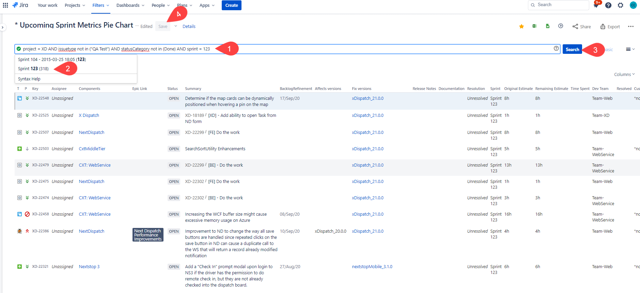
Open each filter and type in the next sprint # that is coming up
-
Select the correct sprint from the drop down menu
-
Once selected, hit the "Search" button to run the JQL query.
-
Once ran, select "Save" and that will automatically apply it to the Sprint Metrics - Product Dashboard Widgets.
* Upcoming Sprint Metrics-UPDATED
* Upcoming Sprint Metrics Pie Chart
Complete the Current Sprint
Before starting the sprint cycle transition, check with Sandy (Team Web Service Engineering Manager) to make sure she is good to go with tickets being brought into the new sprint.
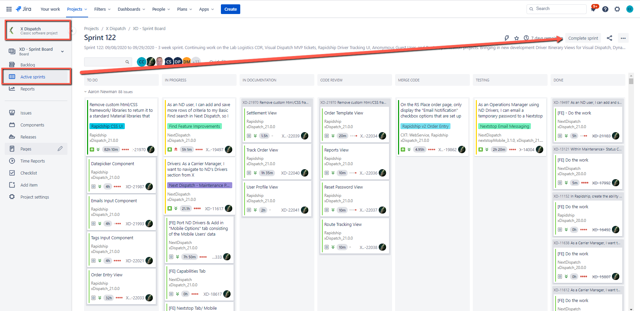
To complete the current sprint, navigate to the XD - Sprint Board's Active Sprints page located in the left navigation bar and select the "Complete Sprint" button
-
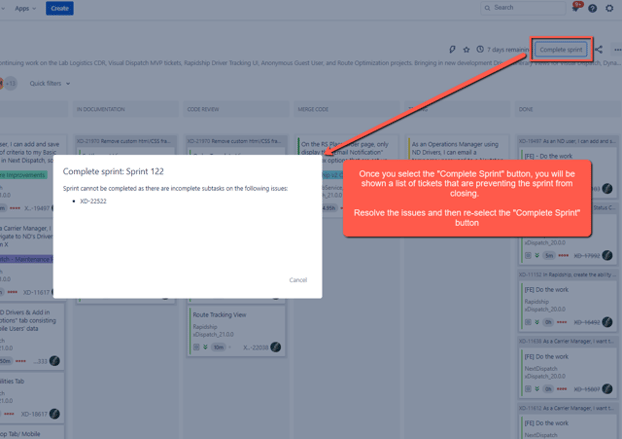
If there are any tickets that have subtasks that need to be closed before sprint can close, a pop up modal will display a list of the tickets that need attention
-
Alert Giani Valentino (QA Specialist) that you will be temporarily closing some of his QA tickets.
-
Go through the list of tickets and close them out temporarily
-
Make sure to write down the subtask ticket #'s and the ticket "Status", so you can re-open them to the same status after the sprint closes (These are Product/QA testing tickets that have all engineering subtasks closed)
-
Once all QA and Product subtasks are temporarily closed, select the "Close Sprint" button again
-
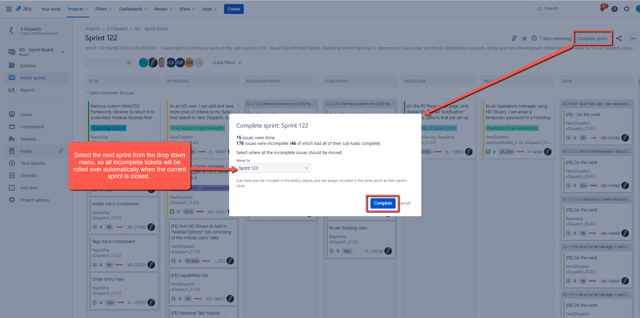
On the "Complete Sprint: Sprint #" modal, select the next sprint # from the drop down menu, so all incomplete tickets will be rolled over automatically to the new sprint when the current sprint is closed.
-
Select the "Complete" button and you will see the Sprint Burndown chart
-
The old sprint is now closed, so you can go through your list of temporarily closed Product and QA tickets and re-open them. Make sure to set them back to the same Status as they were before (ie - On Hold, In Progress, etc)
-
Alert the QA Specialist that all tickets have been restored to their original state
-
You are now ready to start the next sprint!

Prepare the New Sprint Tickets
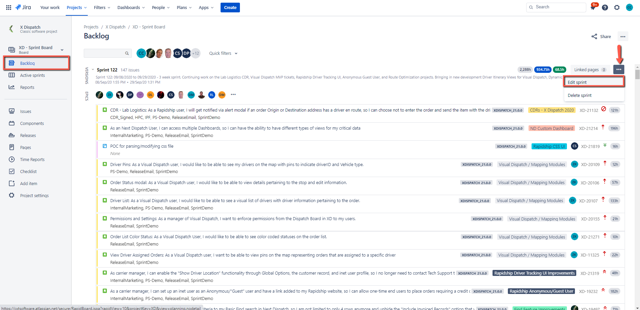
To prepare the new sprint, navigate to the XD - Sprint Board's Backlog page located in the left navigation bar in Jira
-
Click on Action menu (...) in the top right hand corner of the new sprint you will be starting and select "Edit Sprint".
-
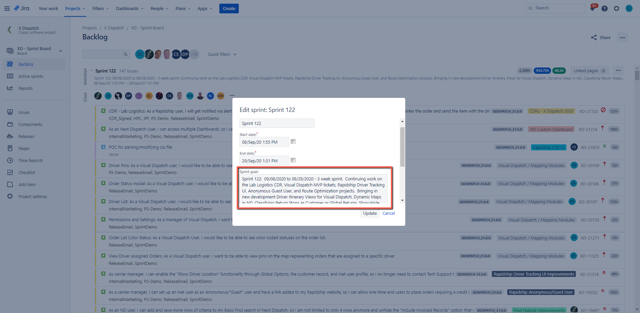
The sprint # and sprint dates will default to whatever you last used (typically 3 weeks), but if you are planning a longer sprint, you can update the dates within this modal.
-
Enter in the Sprint Goals
-
The Sprint Goals should follow this format: Sprint #: mm/dd/yyyy to mm/dd/yyyy - Write out an overview of what you will be accomplishing within this sprint. It should be a high-level list of developments.
-
-
Organize tickets for new sprint
-
Since the incomplete tickets from the last sprint have been rolled over into the new sprint, you will need to review the ticket order and make adjustments based on priority.
-
Tickets will display to the Engineering Leads based on how your rank the tickets within the Sprint Backlog, so tickets should be ranked with the highest priority at the top and lowest priority tickets at the bottom.
-
Priority levels are as follows: Blocker, Critical, Major, Minor, Trivial
-
All CDR's should be marked as a Blocker and ranked at the very top of the associated sprint.
-
Drag and drop tickets into the right order
-

-
New overhead tickets need to be created with every new sprint
-
Create a new "Overhead" and "Environmental Issue Overage" ticket
-
See XD- and XD- for examples of both tickets. You can clone these tickets and update the information for faster ticket entry.
-
The Environmental Issue Overage gets assigned to the new sprint
-
The Overhead Spike ticket does not get assigned to the sprint
-
Note the new ticket numbers because you will post them in the "Product and Engineering" chat right after the new sprint has been started.
-
-
Close out the "Overhead" and "Environmental Issue Overage" tickets from the previous sprint
-
TIP: I find it helpful to link the tickets together for easier historical searches later
-
Start New Sprint
To start the new sprint, click on the "Start Sprint" button on the XD - Sprint Board's Backlog page
-
If there are any tickets that are stopping the new sprint from starting, you will be shown a pop up modal with a list of problematic tickets.
-
You can manually look up the ticket numbers or to speed up the process, you can run the following filter to find rollover tickets that have 0 minutes remaining within the "Remaining Estimate" field. Start of Sprint Remaining Estimate 0h Filter
-
Tickets will need to be edited to add at least 1 minute into the "Remaining Estimate" field in order to start the sprint. Unfortunately, Jira does not allow a bulk update on this field, so it has to be done manually.
-
-
Once all of the problematic tickets have been updated, go back to the main Backlog page and select the "Start Sprint" button again
-
You will see a recap of the new sprint. If all looks good, select the "Start" button
-
Post a chat message within the "Engineering and Product" Google Chat room with the following format: Greetings Engineers! Sprint (#) has ended and Sprint (#) has officially begun. Please note the following overhead tickets for the new sprint: Overhead- (Insert new ticket link) Environmental Issue Overage - (Insert new ticket link)
-
Happy Sprinting!
Sprint Metrics Dashboard
After you start the new sprint, circle back to update the following dashboard filters to use the new upcoming sprint values. You will need to update the sprint value (sprint = xxx) and save the filter (Save Filter>Save Changes),
PLEASE NOTE: The Current Sprint Remaining Time filter that is also displayed on the dashboard uses the ‘Open Sprint’ value, so it does not need to be manually updated.