
Data Lists
Display all data lists in alphabetical order throughout the application.
Examples:
-
Fleet Filter
-
Business Units Filter
-
Show/Hide’s Hidden Column container
Data Tables
Using the Angular Material table components, it’s easy to create great looking responsive data tables.
Users should be able to see and change the primary sort of the data in the data column headers in the form of a directional arrow, and luckily, this comes out of the box with their components.
When there are a lot of columns to display, data tables should become horizontally scrollable with the option to pin columns to the left.

Data Cards
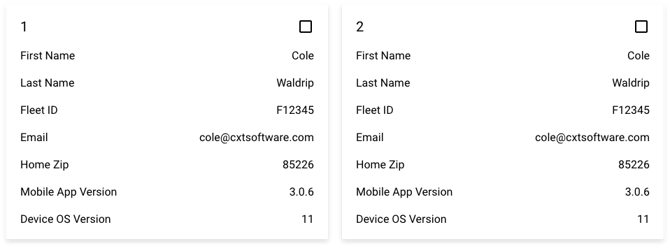
Users currently have the option to switch between viewing data in a table view or a card grid. While it can be difficult to measure the tangible value of this view option, the card layout is very clean and presentable. When presented this way, the data can be easier to scan, but it is really just a matter of preference for each user (and should be saved as such).
Empty States
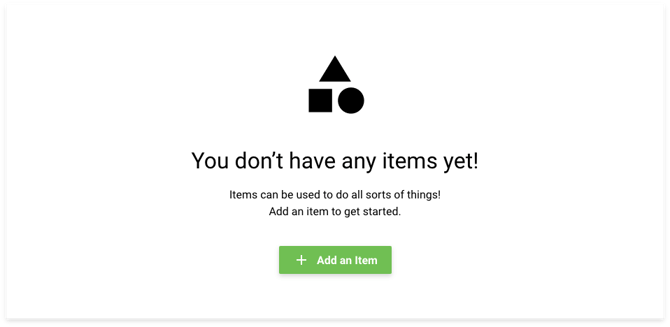
When a user has no data/items created for a given view (eg. Drivers, Fleets, etc.), an empty state should be displayed instead of just a blank page. This empty state should act as a bit of a “first-time-use” state and give a place to explain to the user what the value or use case for the feature is and provide a call to action to add an item or get the page set up.
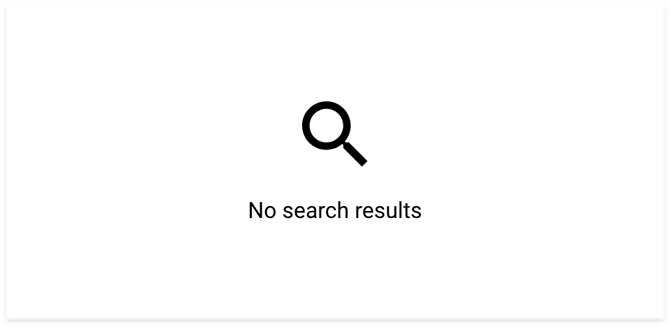
If the view does have data to display, but the data is being searched or filtered down, a different empty state should be displayed informing them that there are no results for their search or filter, again instead of displaying an empty page.
Search & Filter
For all page data sets such as orders, parcels, and many maintenance items, users should be able to search and filter down their results to better find what they’re looking for. Users can either do a simple plaintext search using the search field which will search against a few of the most common data fields.

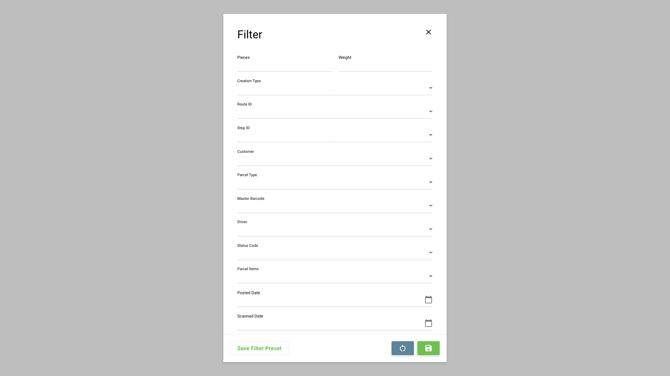
For more advanced filtering, the user can open up the filter modal to configure more specific search criteria. These filters can also be saved as quick filters for future use.
Drawer Tab Checkbox Search Displays
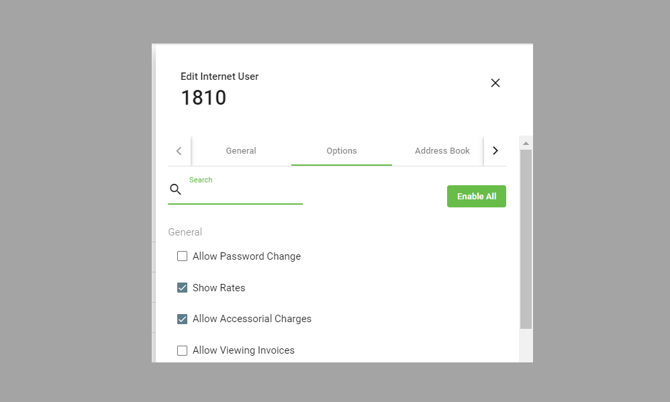
For any tab that contains a checkbox list of selectable options, display a standard Search field and the Enable All / Disable All button functionality.
-
When selected, Enable All will select all of the checkboxes within the tab and the button name changes to Disable All.
-
When Disable All is selected, all of the checkboxes within the tab will be unselected and the button name changes to Enable All.
Interactive Hover
In scenarios where we need to make the best use of space, or may need to hide bigger features behind a button, we should use the Interactive Hover option.
-
Without hover, a button/link is visible to a user.
-
If the user hovers over the button, they will be able to see the modal display beneath that button/link and will be able to interact with the modal using their mouse/keyboard.
-
As the user moves their mouse out of the hover area, the modal is closed automatically and they are shown the button/link again.
-
-
If the user clicks the button/link then the modal is displayed in a static manner, indefinitely, until the user clicks away from the modal or clicks an X within the modal (if exists) to close it.
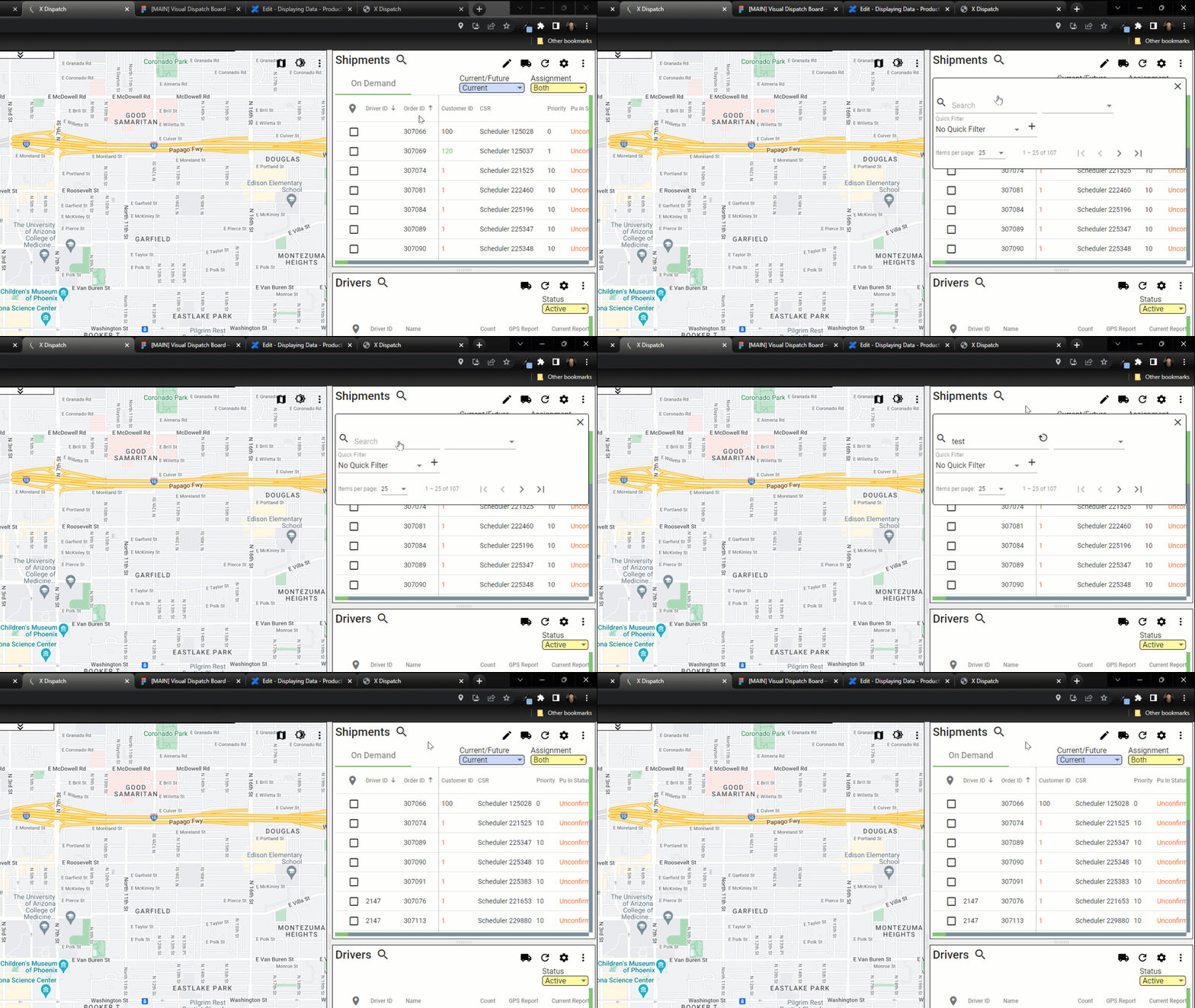
Example of Interactive Hover on Visual Dispatch Board